



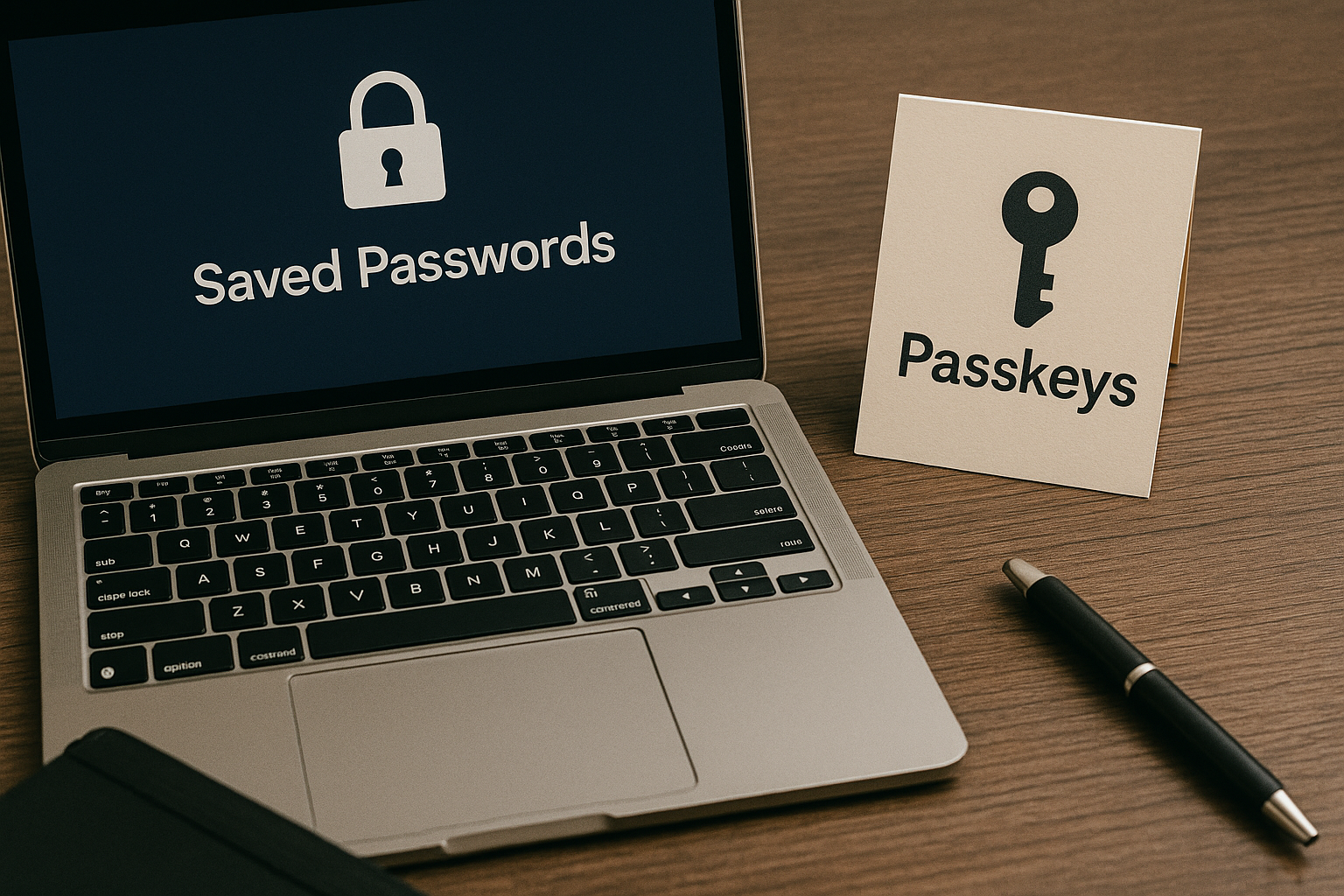
Microsoft is set to take a major step toward a passwordless future by deleting all saved passwords from its Microsoft Authenticator app starting August 1, 2025. The move is part of the tech giant’s ongoing strategy to enhance digital security and encourage users to adopt passkeys—a more secure and user-friendly form of authentication.
What’s Happening on August 1?
Beginning August 1, users who stored website passwords inside the Microsoft Authenticator app will no longer be able to access them. Microsoft has already begun notifying users via app alerts and emails, urging them to export or transition their passwords to more secure options.
This change only affects saved passwords in the Authenticator app’s autofill feature, not the login capabilities or the two-factor authentication (2FA) functionality. Microsoft accounts themselves will remain accessible through standard or passwordless logins.
Why Is Microsoft Doing This?
The move aligns with Microsoft’s broader push for a passwordless ecosystem, which includes technologies like Windows Hello, Microsoft Entra, and now passkeys. According to Microsoft, traditional passwords remain one of the weakest links in digital security, often reused, stolen, or phished.
In a recent statement, the company emphasized, “Passwords are a prime target for hackers. Our goal is to reduce reliance on passwords and shift users toward more secure, phishing-resistant options.”
What Are Passkeys?
Passkeys are cryptographic credentials that allow users to log into apps and websites using biometric methods (like fingerprint or face recognition), a device PIN, or a physical key. Unlike passwords, passkeys are stored locally on a device and are never shared with the server, making them much harder to compromise.
Google, Apple, and other major tech firms are also pushing passkeys as the future of secure login.
How to Prepare for the Change
If you’ve been using the Microsoft Authenticator app to save and autofill website passwords, here’s what you should do before August 1:
- Export your saved passwords from the app to a secure password manager.
- Switch to a dedicated password manager like Bitwarden, 1Password, or LastPass.
- Set up passkeys where supported—for example, in Microsoft Edge, Google Chrome, or on devices running iOS and Android.
Microsoft also offers guidance through its official support channels for migrating passwords and adopting passkey authentication.
No Impact on Microsoft 2FA or Authenticator Function
It’s important to note that the Authenticator app’s core function—as a second-factor authentication (2FA) tool—remains unchanged. You’ll still receive authentication codes and push approvals as usual for Microsoft accounts and other services linked through the app.